img2text Documentation
Complete guide to using the img2text WordPress plugin for automatic SEO-optimized image descriptions.
Getting Started
img2text is a WordPress plugin that uses AI to automatically generate SEO-optimized alt texts, titles, captions, and descriptions for your images. It improves your website's accessibility and search engine ranking.
Requirements:
- WordPress 5.0 or higher
- PHP 7.4 or higher
- An img2text account with API key
- Active subscription with available credits
Installation
Step 1: Download the Plugin
Log in to your img2text dashboard and download the latest plugin version.
Step 2: Upload to WordPress
- Go to Plugins > Add New > Upload Plugin
- Select the downloaded ZIP file
- Click "Install Now"
- Activate the plugin
Step 3: Enter API Key
- Navigate to img2text in the WordPress admin menu
- Copy your API key from the dashboard
- Paste it into the API Key field
- Click "Save Settings"
Keep your API key secure. Never share it publicly.
Configuration
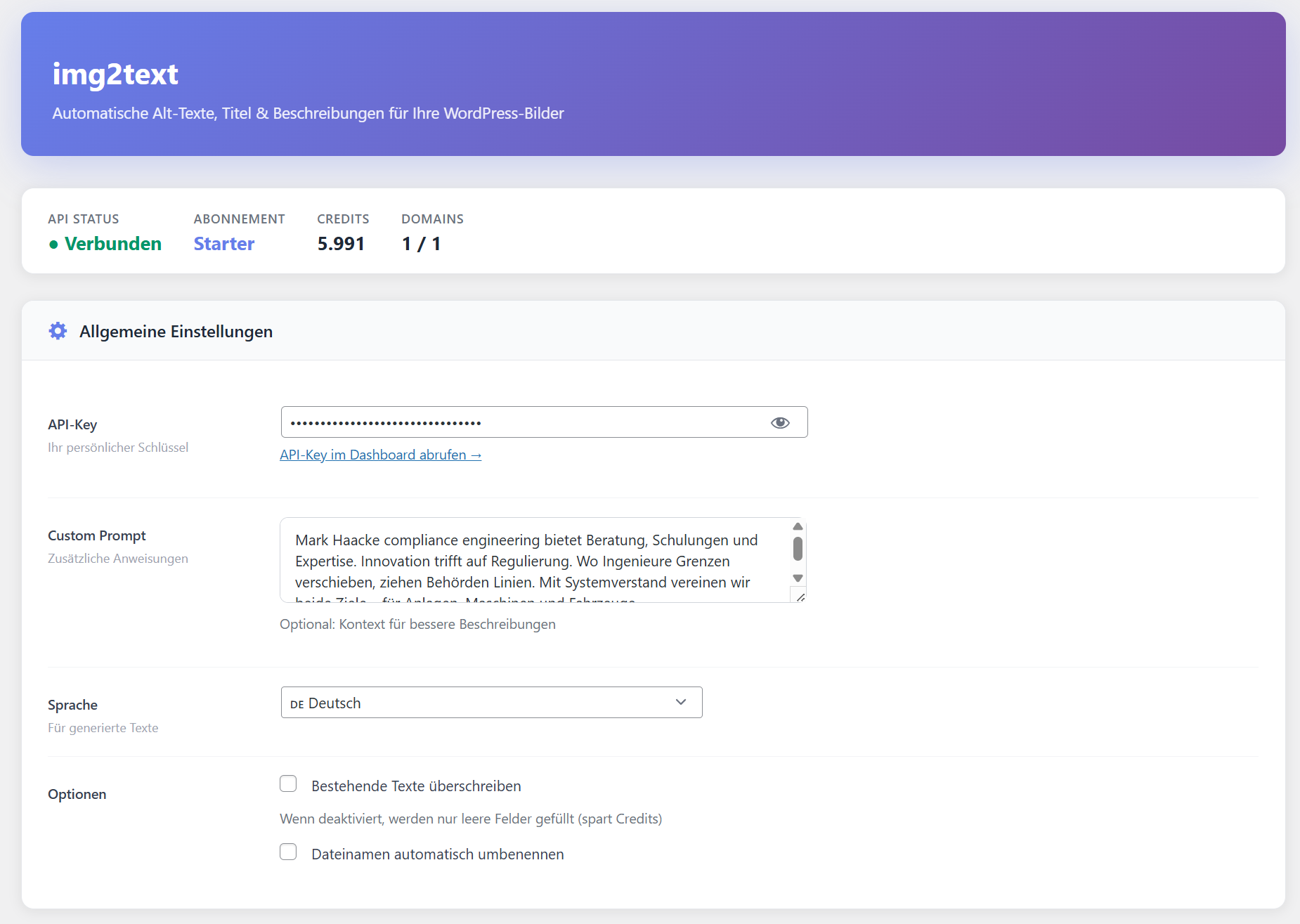
| Setting | Description |
|---|---|
| API Key | Your personal API key from the img2text dashboard. Required for all operations. |
| Custom Prompt | Additional context for the AI to generate more relevant descriptions (e.g., "This is a furniture shop"). |
| Language | Output language for generated texts. Supported: German, English, French, Spanish, Italian, Portuguese, Dutch. |
| Overwrite | When enabled, existing texts will be overwritten. When disabled, only empty fields will be filled (saves credits). |
| Rename Files | Automatically renames image files to SEO-friendly names. |
Generated Fields
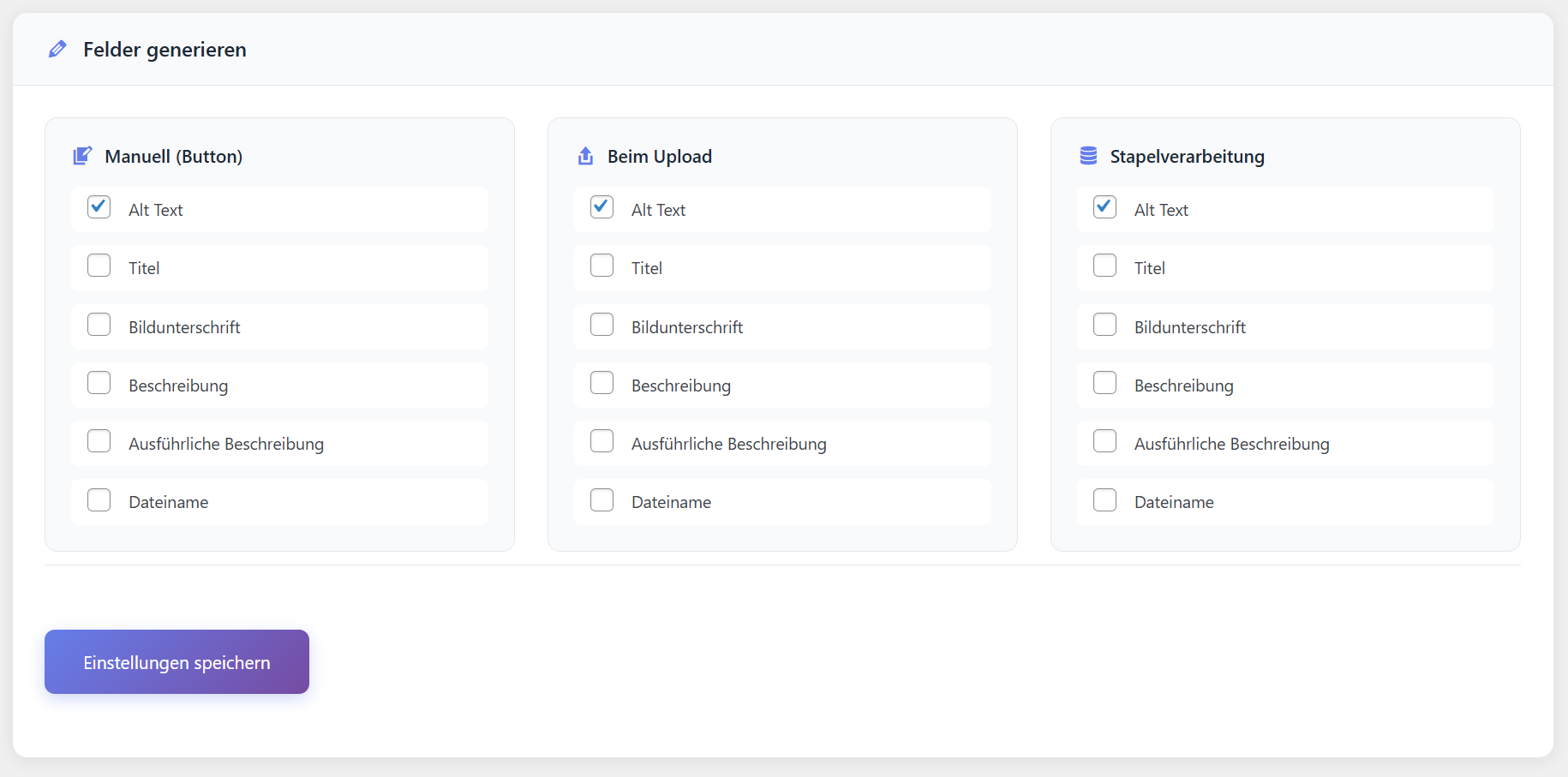
Alt Text
The most important field for SEO and accessibility. Describes image content for screen readers and search engines.
Title
The image title displayed on hover. Useful for additional context.
Caption
Visible text below the image when inserted into posts/pages.
Description
Detailed description stored in the media library.
Long Description
Extended description for detailed image documentation.
Filename
SEO-friendly filename suggestion based on image content.
Manual Generation
Generate texts for individual images on demand.
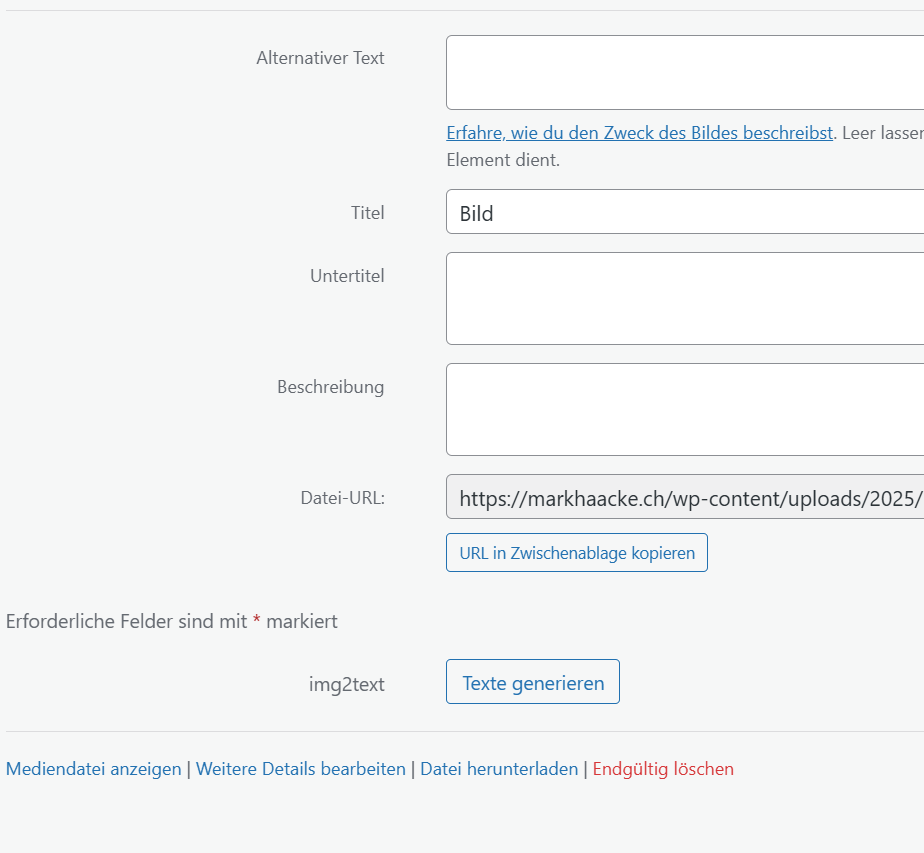
How to use:
- Go to Media > Library
- Click on any image
- Find the "img2text" section
- Click "Generate Texts"
- Wait for the AI to analyze and generate
- Review and save the generated content
Tip: Manual generation uses the fields configured under "Manual (Button)".
Automatic Upload Processing
Automatically generate texts when new images are uploaded.
Setup:
- Go to img2text settings
- Find "On Upload" in the Fields section
- Select the fields to generate automatically
- Save settings
Note: Each upload consumes credits. Consider your credit usage.
Bulk Processing
Process all images in your media library at once.
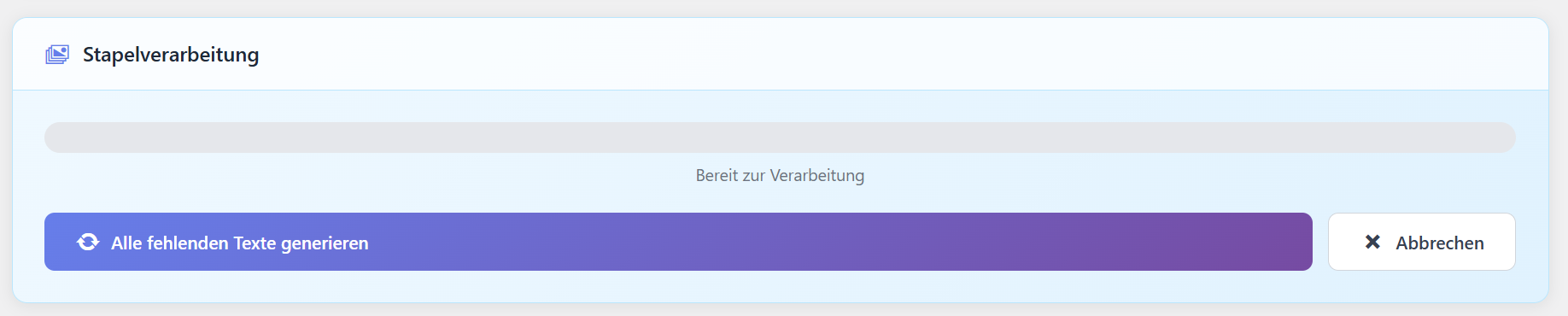
How it works:
- Configure fields to generate under "Bulk Processing"
- Scroll to the "Bulk Processing" card
- Click "Generate All Missing Texts"
- Progress bar shows current status
- Processing runs in background via WP-Cron
- You can stop anytime with Cancel
When "Overwrite" is OFF
Only images without alt text will be processed. Existing texts are preserved.
When "Overwrite" is ON
ALL images will be processed and existing texts will be replaced.
Performance: Bulk processing handles 5 images per minute via WP-Cron.
Custom Prompts
Use custom prompts to get better, context-aware descriptions for your specific use case.
E-Commerce / Online Shop
Real Estate
Food & Restaurant
Travel & Tourism
API Reference
For developers who want to integrate img2text directly.
Request Headers
Request Body
Response
Check your account status, credits, and subscription.
Frequently Asked Questions
Troubleshooting
"API Key Invalid" Error
This error occurs when the API key is incorrect or expired.
- Copy the API key directly from your dashboard
- Check for leading/trailing spaces
- Ensure your subscription is active
- Regenerate a new API key if needed
"Domain Limit Reached" Error
You've exceeded the number of allowed domains.
- Go to your domain management
- Remove unused domains
- Add the new domain
- Consider upgrading to a plan with more domains
Bulk Processing Stops or Is Very Slow
Bulk processing relies on WP-Cron, which doesn't run reliably on all hosts.
- Ensure your site gets regular traffic
- Set up a real cron job
- Check if a caching plugin is blocking cron
- Increase PHP timeout in your hosting settings
"Image URL Not Found" Error
The API couldn't access your image.
- Check if the image is publicly accessible
- Ensure your site doesn't block external requests
- Check firewall or security plugin settings
- Test the image URL in an incognito browser
Generated Texts Not Appearing
Texts were generated but don't show in WordPress.
- Refresh the media library page
- Clear cache plugins
- Check if "Overwrite" is disabled and fields already have content
- Verify the correct fields are selected